Is Your Website Blocking ChatGPT? How to Check in 5 Minutes
Is your website blocking ChatGPT? The short answer: type your website address followed by /robots.txt into your browser. If you see the words GPTBot, OAI-SearchBot or ChatGPT-User next to “Disallow: /”, your site is telling ChatGPT to stay out. Also check your security plugin and web host, since they can block AI without touching that file.
You can have the prettiest website in your industry and still be invisible to AI. If ChatGPT isn’t allowed in, it can’t read what you do, and so it can’t recommend you. The good news is that a website blocking ChatGPT is usually a one-line fix.

What is robots.txt?
It’s a small text file at the root of every website. In short, it tells visiting bots which pages they’re allowed to read. Search engines and AI companies check it before they look at your site. Google’s robots.txt guide explains the rules in more detail.
You can see anyone’s robots.txt by adding /robots.txt to their web address. Try yours now: yourwebsite.com/robots.txt.
Which AI bots can your website block?
First, know that each AI company sends its own bots, and each has a name. These are the main ones:
| Bot name | Company | What it does |
|---|---|---|
| OAI-SearchBot | OpenAI | Finds pages to show in ChatGPT search results |
| ChatGPT-User | OpenAI | Visits a page when someone in ChatGPT asks about it |
| GPTBot | OpenAI | Collects pages to train future models |
| ClaudeBot | Anthropic | Collects pages for Claude |
| PerplexityBot | Perplexity | Finds pages for Perplexity answers |
| Googlebot | Google Search, including AI Overviews | |
| Bingbot | Microsoft | Bing search and Copilot |
If you want ChatGPT to recommend you, OAI-SearchBot and ChatGPT-User are the two that matter most. OpenAI lists all three of its bots in its crawler documentation. GPTBot, on the other hand, is about training. Some owners choose to block it, and that’s a personal call. Blocking GPTBot doesn’t keep you out of ChatGPT search.
What a website blocking ChatGPT looks like
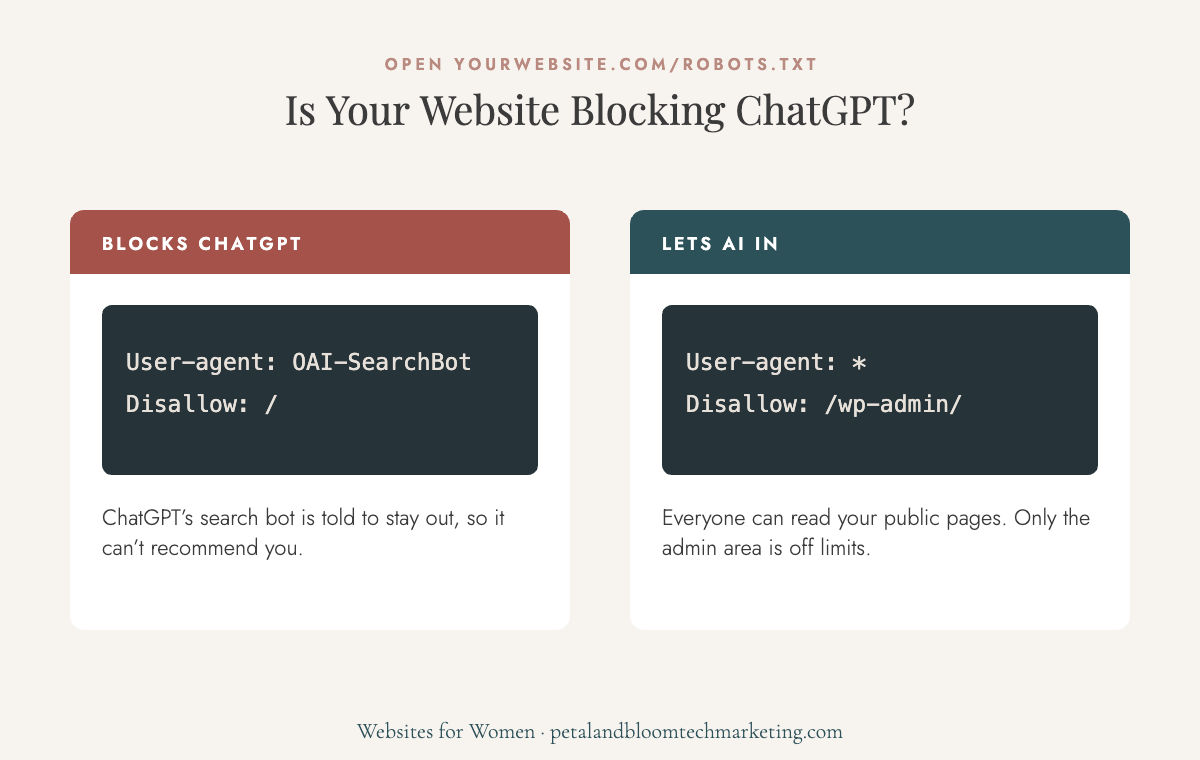
This blocks every bot from your whole site, including Google:
User-agent: *
Disallow: /
This blocks ChatGPT’s search bot only:
User-agent: OAI-SearchBot
Disallow: /
By contrast, this is fine. It lets everyone in except your admin area:
User-agent: *
Disallow: /wp-admin/
In other words, an empty Disallow: line blocks nothing. The trouble is a Disallow: / with only a slash after it.
How to check if your website is blocking ChatGPT on your platform
Menus change often, so if a setting has moved, search your platform’s help center for “robots.txt” or “AI crawlers.”
Showit
Showit doesn’t give you a robots.txt editor, and it doesn’t block AI by default, so a Showit website blocking ChatGPT is rare. Instead, check two things. In each page’s SEO settings, make sure “hide from search engines” is off for pages you want found. Also, if your blog runs on WordPress through Showit, check the WordPress steps below too.
WordPress
Go to Settings → Reading and make sure you’ve unchecked “Discourage search engines from indexing this site.” If you use Yoast, you can see and edit robots.txt under Yoast SEO → Tools → File editor. Also check security plugins like Wordfence or firewall settings, which sometimes block bots they don’t recognize. A WordPress website blocking ChatGPT is most often a plugin setting.
Squarespace
Squarespace has a setting that blocks known AI crawlers, which can leave your website blocking ChatGPT without you knowing. Look for it under your site’s Settings in the Crawlers section. Then turn off the AI crawler block if you want AI assistants to find you.
Wix
Go to your dashboard’s SEO settings and open the robots.txt editor. Then look for any AI bot names with “Disallow: /” and remove those lines, because each one leaves your website blocking ChatGPT or another assistant.
Shopify
Shopify’s default robots.txt doesn’t block AI assistants. However, if a developer customized it, the rules live in a theme file called robots.txt.liquid. Ask your developer or check Online Store → Themes → Edit code.
Is Cloudflare or your web host blocking ChatGPT?
Your robots.txt can look perfect while something else blocks AI bots before they reach your site, leaving your website blocking ChatGPT anyway. The most common one is Cloudflare. It offers a setting that blocks AI crawlers, and in July 2025 it changed its default to block AI crawlers.
So if you use Cloudflare, log in, open your site, and look under Security for AI bot or bot-fighting settings. Your web host may have similar settings, so ask their support team: “Are you blocking any AI crawlers like OAI-SearchBot on my site?”
Is it safe to stop blocking ChatGPT?
Yes, for the public pages of a business website. After all, these bots only read what anyone can already see in a browser. Also, they can’t log in to anything, see your client portal or read private files.
You also decide what’s in and out. For example, you can let AI read your service pages and blog while keeping a members area or checkout blocked.
After you fix it
- Recheck yourwebsite.com/robots.txt to make sure your change saved.
- Submit your sitemap in Google Search Console and Bing Webmaster Tools.
- Finally, give it a few weeks. Bots come back on their own schedule.
Unblocking AI is step 1 of 6 in How to Get Recommended on ChatGPT. Once AI can get in, the next question is whether your site tells it clearly what you do. That’s Step 2: homepage SEO.
Website blocking ChatGPT: frequently asked questions
No, not in any way you’d notice for a small business site.
No. GPTBot is for training. ChatGPT search uses OAI-SearchBot and ChatGPT-User, so make sure you allow those two.
It can confuse some bots. Combine them into one section so the rules are clear.
Not sure what you’re looking at?
The Visibility Fix checks whether ChatGPT, Perplexity and Google’s AI can get into your site. If they can’t, it shows you exactly where to click on your platform to fix it. $27 a month, cancel anytime. Or read the hidden SEO mistakes costing female entrepreneurs for more quick fixes.
Leave a Reply

© 2024 Petal & Bloom Tech Marketing | All Rights Reserved
